Functional Description
This page provides detailed information about all components and features of the evroc compute service. For a high-level overview, see the Compute Service Overview.
The evroc compute service gives you on-demand virtual machines with flexible compute, storage, and networking resources. Built on a modular architecture, the service lets you mix and match components to create the exact infrastructure your applications need - from simple web servers to complex multi-tier architectures with GPU-accelerated workloads.
How resources work together
The evroc compute service uses a modular architecture where compute, storage, and networking resources can be managed independently. This gives you flexibility to, for example, replace a VM while keeping its Public IP, or move data disks between VMs without losing data.
All resources live in a resource group - a logical container for your cloud infrastructure. Each resource group includes VMs, networking, storage, and security components that you can configure to meet your needs. (Resource groups are currently called Projects in the console. The API terminology will be updated to match in a future release.)
The diagram below shows how VMs, networking, storage, and security resources connect in the evroc cloud.
Green resources are created automatically in each resource group and cannot be modified.
Blue resources are created, updated, and deleted by you.
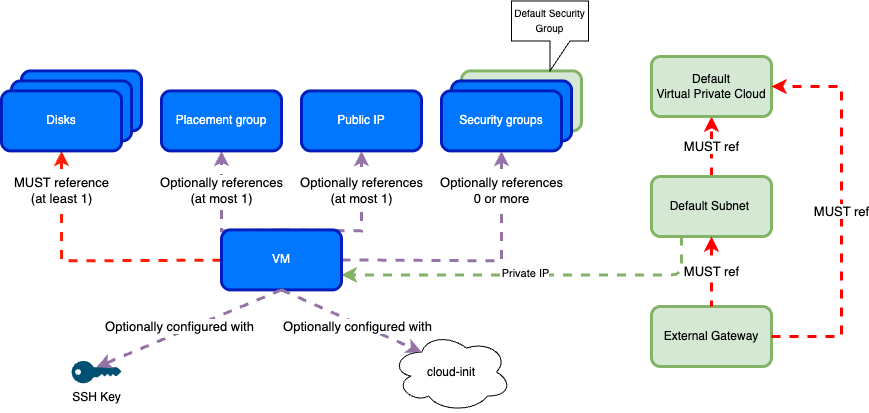
In practice: your VM connects to the default subnet for internal communication, optionally uses a Public IP for internet access, and follows security group rules for traffic control. Storage disks attach independently so you can preserve data when replacing VMs. Placement groups keep VMs on separate hardware for high availability. SSH keys enable secure remote access, and cloud-init scripts provide automated configuration at boot.
Virtual Machines
VMs are the primary compute resources in the evroc cloud. Each VM provides dedicated virtual CPU, memory, and optional GPU resources for your workloads. You have full control over the VM's running state and can configure network access by attaching Public IPs and configuring security groups.
Required components
Every VM must have a:
- Boot disk - The operating system disk, configured with a pre-installed OS image
- Resource profile - CPU, memory, and optional GPU allocation. Options include:
- General-purpose, memory-optimized, and compute-optimized (2-32 vCPUs, 4-128 GB RAM)
- GPU instances with configurable number of GPUs (up to 4x L40S or 8x B200)
- Private network connection - Automatically created for VM-to-VM traffic within a VPC
Optional components
You can add:
- Public IP - Required for inbound access to the VM from the public internet
- SSH key - For secure remote login to the VM (at least one required at creation time if SSH access is required)
- Additional data disks - Up to 9 data disks per VM
- Placement group - Ensures the VM is deployed on different physical hosts from others in the group
- Cloud-init user-data script - Customizes the VM at boot time
VM lifecycle operations
Once created, you can:
- Stop and start the VM
- Attach and detach disks and public IP addresses
- Assign and unassign security groups
- Add or remove the VM from placement groups
For more details, see the how-to guides.
Storage
Persistent disks provide storage for your VMs. All disks use SSD-backed block storage to ensure high performance, availability, and reliability. Disks can be independently created and attached to any VM, and data persists beyond individual VM lifetimes.
Boot disks
Each VM requires exactly one boot disk. Boot disks are configured with a disk image that defines the VM's operating system. Available operating systems include:
- Ubuntu (24.04, 22.04)
- Ubuntu-minimal (24.04)
- Rocky Linux (9.6, 9.5, 8.10)
- SLES (15.6, 15.5)
Boot disks can be up to 4 TB in size. If no size is specified, a default size is used based on the selected image (typically 50 GB).
Data disks
VMs can have up to 9 additional data disks for storage. Each data disk:
- Can be up to 4 TB in size
- Is created unformatted and must be formatted by you
- Can be attached and detached from VMs independently
- Persists beyond the VM lifecycle and can be reattached to new VMs
For more details, see Disks.
GPU VM local storage
GPU VMs also include local SSD storage for extremely low-latency, high-throughput data access.
Networking
The evroc compute service provides comprehensive networking capabilities to connect your VMs and control traffic flow. Each resource group includes automatic networking configuration, with options for customization.
Default networking components
To simplify the experience of deploying a VM, each resource group is automatically configured with a complete networking environment that includes:
- Virtual Private Cloud (VPC) - An isolated network environment for your resources
- Subnet - A range of 256 private IPv4 addresses (
10.0.0.0/24) for internal VM-to-VM communication within the VPC. VMs are automatically assigned an IP address from this range when created - External gateway - A managed NAT gateway for routing traffic between your VPC and the public internet
- Outbound access: Enabled by default. Traffic uses a shared IP address unless a Public IP is attached to the VM
- Inbound access: Requires a Public IP and appropriate security group rules to allow inbound traffic
- Default security group - Allows VM-to-VM communication within the VPC and outbound internet access. All inbound external traffic is blocked. VMs are added to this security group by default unless you specify different groups
Configurable networking resources
You can create and configure additional networking resources:
- Public IPs - Persistent public IPv4 addresses that can be created and assigned to a VM. They are required for inbound access to a VM from the public internet. Once allocated, the IP address is persistent and can be reassigned to different VMs as needed
- Security groups - Custom firewall rules that implement fine-grained controls to allow or deny traffic, filtered by protocol, direction, IP addresses, and port numbers. Security group rules control traffic by port, protocol, and source IP/CIDR range, or by referencing other security groups
For example, you might run three VMs for a web application inside the same subnet, each with a Public IP for external users, and a database VM with only private access for internal communication.
For more details, see Virtual Private Clouds, Subnets, External Gateway, Public IPs, Security Groups, and Default Networking Setup.
Placement Groups
By default, VMs may be scheduled on the same physical host. Placement groups allow you to control VM placement to improve availability.
Placement groups enforce a strict spread placement strategy for high-availability deployments. This ensures VMs run on distinct physical hardware for anti-affinity, making your deployment resilient to the failure of a single host. You can add up to 5 VMs to a single placement group.
To use placement groups, create a placement group with the spread strategy, then add VMs to it when creating them or afterward.
For more details, see Placement Groups.
VM Configuration and Access
SSH Keys
SSH keys provide secure authentication for accessing your VMs. Password authentication is disabled by default in evroc VMs, making SSH keys the primary access method. If you need to access a VM over SSH, you must configure at least one SSH public key when creating it - either through the Console/CLI/API or via cloud-init.
Cloud-init
Cloud-init is an industry-standard tool for automating VM configuration at boot time. The evroc compute service includes cloud-init in all OS images, allowing you to customize VMs during their first startup.
With cloud-init, you can:
- Install and configure additional packages
- Configure the operating system to your needs
- Add SSH keys and configure user access
- Format and mount additional disks
- Run custom scripts and commands
Example cloud-init configuration:
#cloud-config
packages:
  - nginx
users:
  - name: admin
    ssh-authorized-keys:
      - ssh-rsa AAAA...
For more details, see Cloud-init and Using custom cloud-init userdata.
Managing compute resources
You can create and manage compute resources through the console, CLI, or Kubernetes API. See the how-to guides for step-by-step instructions on common tasks.